How to Transfer WhatsApp Chats to GB WhatsApp
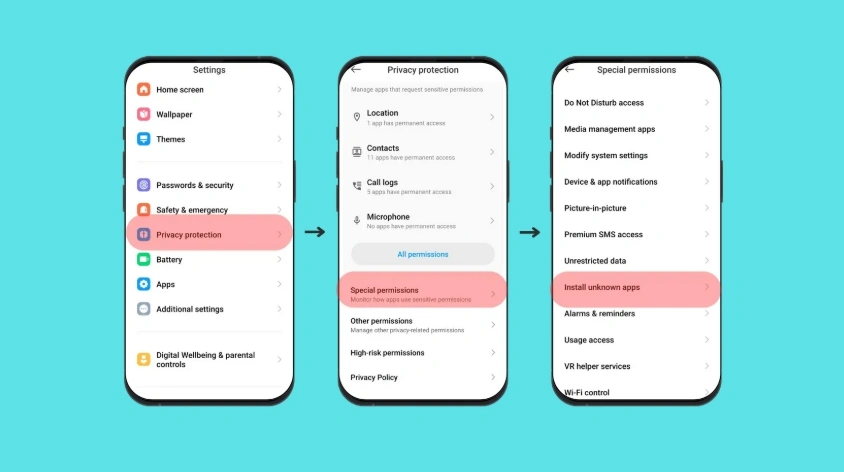
Moving from the official WhatsApp app to GB WhatsApp involves more than installing another APK. If you want to keep your existing conversations, you need to understand how the backup was created, where the files are stored, and whether the GB WhatsApp version you plan to use can read them.
The most important step is preparing your data before changing applications.
GB WhatsApp is an unofficial modified version of WhatsApp. It is not supported by Meta, and its backup and restore behavior may differ between releases. A successful backup in the official app does not guarantee that every GB WhatsApp build can restore it.
Before You Start, Check These Things
Do not uninstall the official WhatsApp app immediately.
First, check the following:
- Your existing conversations are still visible in WhatsApp.
- You have created a recent backup.
- Important photos, videos, and documents are stored somewhere safe.
- You know where your local backup files are located.
- You have enough free storage for the backup and the new installation.
- You have checked whether your intended GB WhatsApp release supports the backup method you plan to use.
A backup should not be treated as reliable until you know that the file exists and can be accessed.
If the conversations are important, keep an additional copy of essential media and documents outside the messaging app.
Step 1: Create a Backup in Official WhatsApp
Open the official WhatsApp application and go to its chat backup settings.
The general process is:
- Open WhatsApp.
- Go to Settings.
- Select Chats.
- Open Chat Backup.
- Review the available backup options.
- Start a new backup if the settings and account are correct.
If you use cloud backup, confirm that the backup finishes successfully and that you are using the correct Google account.
However, a Google Drive backup made by official WhatsApp should not be assumed to be directly restorable by every GB WhatsApp release.
For this reason, also understand whether the version you plan to install relies on a local backup file and whether it supports the backup structure created by your existing app.
Step 2: Locate and Protect Your Local Backup
Android versions handle app storage differently, so the backup folder may not be in the same location on every phone.
Older installations may use a path similar to:
Internal Storage/WhatsApp/Databases/
Newer installations may use a path similar to:
Internal Storage/Android/media/com.whatsapp/WhatsApp/Databases/
These are examples, not guaranteed paths. Your phone's actual folder structure may differ.
Use a file manager to check whether local backup files exist.
Before proceeding:
- Copy the relevant backup folder to another safe location.
- Keep the original files unchanged.
- Check the backup file date.
- Make sure the copied files are not empty.
- Keep a separate copy of important media folders.
Do not rename backup files randomly or move them into an unrelated directory. The app may not recognize them if the expected folder structure or file naming is changed.
Step 3: Check GB WhatsApp Backup Compatibility
This is the step that often causes confusion.
Different GB WhatsApp releases may use different package names, storage paths, and restore procedures. Some versions may recognize a local backup, while others may not support the same process.
Before installing the modified app, check the instructions for the exact release you intend to use. Start with the GB WhatsApp setup guide for installation context.
Confirm:
- Which backup file format it accepts.
- Which folder it expects the backup to be in.
- Whether the backup must be prepared before the first launch.
- Whether it supports the Android version on your phone.
- Whether it can restore the media files as well as chat history.
Do not rely on instructions written for an older release if you are installing a newer build.
Step 4: Install GB WhatsApp Carefully
If you decide to install GB WhatsApp, use a source you can evaluate and inspect the APK before installing it.
Because GB WhatsApp is unofficial software, it does not receive the same distribution and security assurances as the official WhatsApp application.
Keep your original backup separate from the installation process.
During setup, follow the prompts provided by the installed version. If it detects a compatible local backup, review the restore option carefully.
If no backup is detected, stop and check the file location and compatibility requirements. Repeatedly uninstalling and reinstalling the app will not make an incompatible backup readable.
Step 5: Verify Your Chats After Restoration
Do not assume the migration is complete just because the app opens.
Check a few different types of conversations:
Recent chats: Confirm that recent messages appear.
Older conversations: Open several older chats to check whether the history is present.
Group chats: Check whether group conversation history is available.
Photos and videos: Open older media files and confirm that they can be accessed.
Documents and voice messages: Check important attachments separately.
A chat history may be restored without every media file being available. If you rely on important documents or photos, verify them individually.
Keep your original backup until you have confirmed that the restored data is usable.
What If GB WhatsApp Cannot Find the Backup?
If the app does not detect your backup, check these possibilities:
- The backup is stored in the wrong folder.
- The backup file was not copied completely.
- The file was created by a version that is not compatible.
- The app expects a different backup format.
- Android storage permissions are preventing access.
- The backup file has been renamed or modified.
Start by checking the exact backup instructions for your GB WhatsApp release.
Do not delete the original WhatsApp backup to make room for another attempt. Preserve it until you have a working alternative.
Can You Transfer WhatsApp Chats Back to the Official App?
Returning to official WhatsApp may require another backup and a compatible restore process.
Do not assume that a GB WhatsApp backup can be imported directly into the official application. Modified versions may store data differently, and the official app may not recognize their local files.
If you plan to return to official WhatsApp, check the available export or backup options before uninstalling GB WhatsApp.
For important conversations, preserve any accessible local data and media separately. If the modified app provides a supported backup procedure, follow the instructions for that specific release.
Important Risks Before Switching
There are several reasons to be cautious when moving conversations to an unofficial messaging app.
Backup compatibility: Not every release supports the same backup and restore methods.
Data loss: An incomplete or incompatible backup can leave you without access to older conversations.
Account restrictions: Using unofficial WhatsApp clients may violate WhatsApp's terms and can expose an account to restriction or suspension.
Privacy and security: A modified APK may not provide the same security assurances as the official application. Avoid entering sensitive information into software from an untrusted source.
If keeping your conversation history is more important than using modified features, staying with the official WhatsApp app is the safer option.
Frequently Asked Questions
Can I transfer all WhatsApp chats to GB WhatsApp?
It depends on the backup format, Android storage access, and the GB WhatsApp release. A successful backup does not guarantee that every modified version can restore all chats and media.
Can GB WhatsApp restore a Google Drive backup?
Do not assume direct Google Drive restore is supported. Compatibility depends on the specific release and its backup process.
Will my photos and videos transfer with my chats?
Not necessarily. Chat history and media files may be stored separately. Check both after restoration.
Should I uninstall WhatsApp before installing GB WhatsApp?
Do not uninstall the official app before preparing and verifying your backups. Keep your original data safe until you have confirmed that the migration worked.
What should I do if my backup is not detected?
Check the backup location, file integrity, storage permissions, and compatibility instructions for your installed GB WhatsApp version. Avoid deleting or modifying the original backup during troubleshooting.
Is transferring chats to GB WhatsApp risk-free?
No. GB WhatsApp is unofficial software, and migration can involve compatibility, privacy, account, and data-loss risks. Keep a separate copy of important information before switching.